

Create an Order Using the Copy Method
You can avoid repetitive data entry by copying an existing order that is similar to the one that you want to create.
To create an order using the copy method click New Order from the top task bar.
Click the  button.
The copy order pop-up box displays the list of current orders.
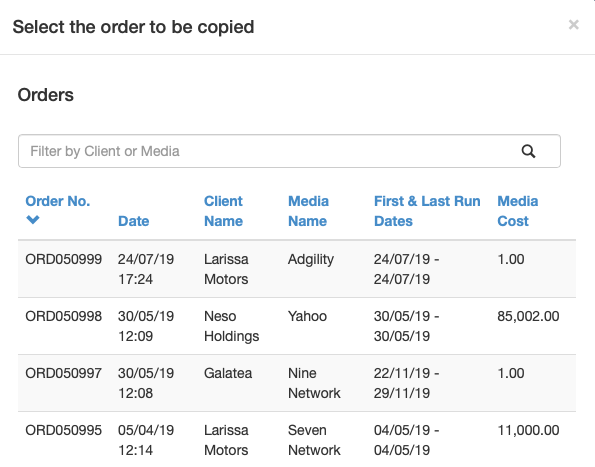
Click on the order you would like to copy from the list of current orders, or use the search filter to find an order similar to the one that you want to create.
You can search by either client or media name. Refine the search using the column headers to sort ascending or descending. The up and down arrows indicate which sort column is active.

The new order fields are populated from the copied order. Fields can be updated as required.
IMPORTANT: the Run Dates on each item will reset to today’s date. Use the calendar button to enter the new Run Dates for each item.
Click the Continue button at bottom right to continue to each step.
Complete the booking by reviewing the order, accepting the terms and conditions, and clicking the Submit button at bottom right.
Copy from Existing Checklist.
- select New order.
- select Copy from Existing.
- select from current orders, or search for a similar order.
- update the Run Dates for each item.
- submit the new order.