

Set a media rep contact as a My Reps favourite.
From the My Reps screen click the Add To Favourites button at top right. The Select Media Sales Rep Contact box is displayed.

Find your media rep contact using the search box by entering part or all of the contact’s name or media.
Click on the Rep Contact name to include the contact in your My Reps list.
Your My Reps list will be updated with the selected contact.
NOTE: If the media rep contact does not exist in the adhub media directory then you will need to add the contact by selecting the New Media Rep link from the top navigation bar.
Remove a My Reps contact from favourites.
From the My Reps screen click on the media rep contact. The View Person box is displayed.
Click the Remove from Favourites button.
The media rep contact will be removed from your My Reps list.
Select from My Reps when adding a media order.
Select the media rep by clicking the blue ‘Select Media Rep Contact’ link. A pop up search box is displayed.
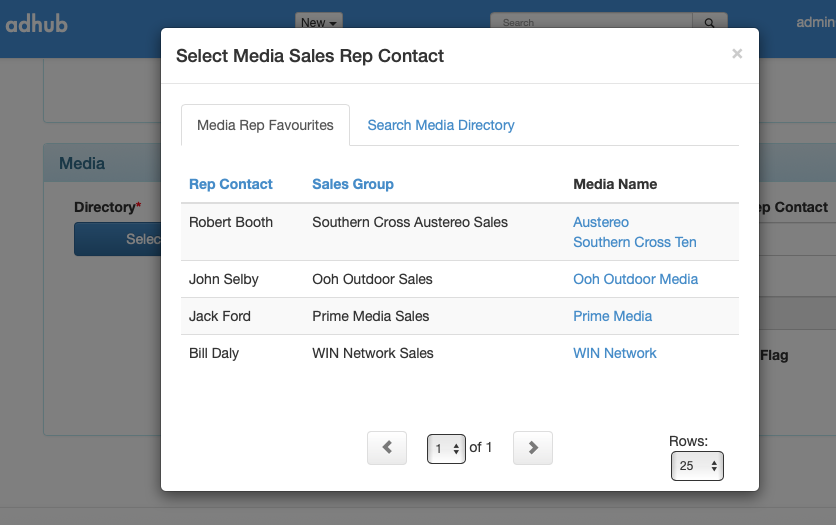
The default selection tab displays all of your My Reps favourites.
Select the media contact by clicking on the Media Name link.
NOTE: If the media rep contact is not linked to your My Reps you can search for the media contact by clicking the Search Media Directory tab.
Select from My Reps when adding a Client Brief.
To link Send To People to a Client Brief, click the drop down arrow in the Select My Reps Contact box.
A list is displayed containing all of your My Reps favourites.
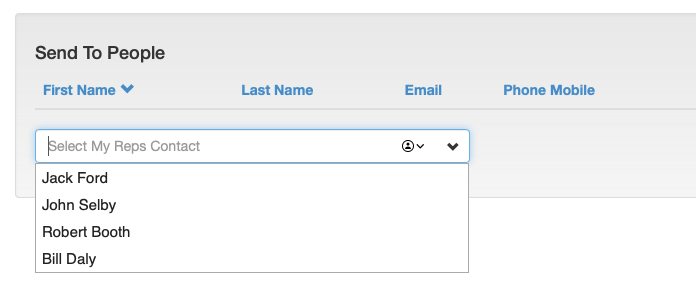
Click on a rep contact name to link it to the Client Brief.
Repeat for each rep contact that will receive the Client Brief.
