

From the My Reps screen click the Add New Brief button at top right of Client Briefs card.
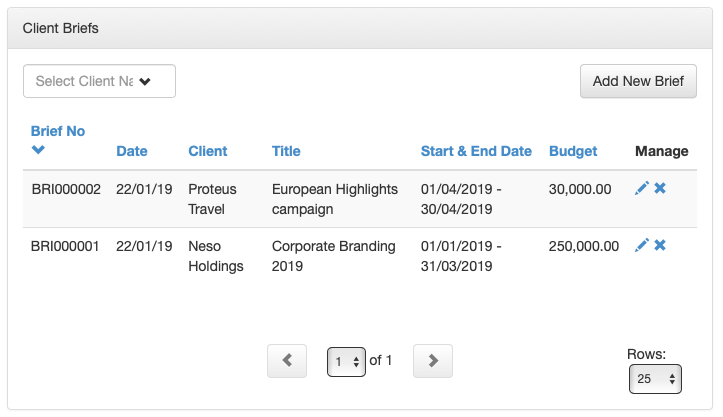
The Add Client Brief screen is displayed.
Details
Select the Client using the drop-down list or by typing part of the client name.
Enter a name for the client brief in the Title field.
Add the proposed Budget and the Start/End Dates for the campaign
NOTE: fields with a red asterisk are mandatory.
Media
Enter the Campaign objective, the Target Demographic, the Brand description.
Select the Media Type using the check boxes. Multiple boxes can be selected.
Online
For client briefs that include digital advertising, enter Marketing Objectives and geographic markets by selecting the check boxes. Multiple boxes can be selected
Send To People
To link Send To People to a Client Brief, click the drop down arrow in the Select My Reps Contact box.
A list is displayed containing all of your My Reps favourites.
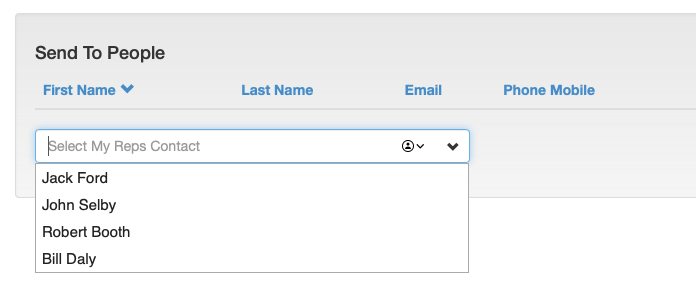
Click on a rep contact name to link it to the Client Brief.
Repeat for each rep contact that will receive the Client Brief.
Click the Save button at bottom right to save the client brief.
Adding a new client brief has now been completed.
