

To amend an order click the Orders link on the left side task bar. The orders list is displayed.
Click on the required order to select it. The order view screen is displayed.
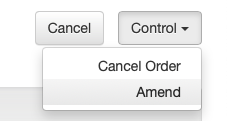
Click the Control button at top right of screen, and then select Amend.
Step to the screen which contains the field you need to amend by clicking the Continue button at bottom right.
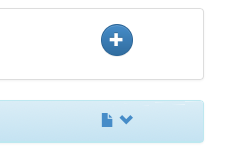
Note: On the Run Details screen click the Item downward arrow V to display the Item’s details.
Make the required changes and click Amend on the final Confirmation screen to submit the changes.
If the order has been approved previously you will need to provide a description of the changes and the reason the order is being amended.
Click Submit. A pop-up check box will be displayed.

Click Yes to confirm you want to amend the order.
Amending an order has now been completed.
Note: Agency approval is required to forward the amended order to the media rep.
IMPORTANT: Avoid making changes to Items with run dates from a previous month. Once run dates expire the Invoice Month will be locked.
Checklist
- select Order from the orders list.
- select Control / Amend.
- make your changes and click Amend to submit the changes.
- approve the order to forward the amended order to the media rep.
