

Add New Order – Step 2 Run Details
The Run Details for each order item are grouped by Description, Costs and Run Dates.
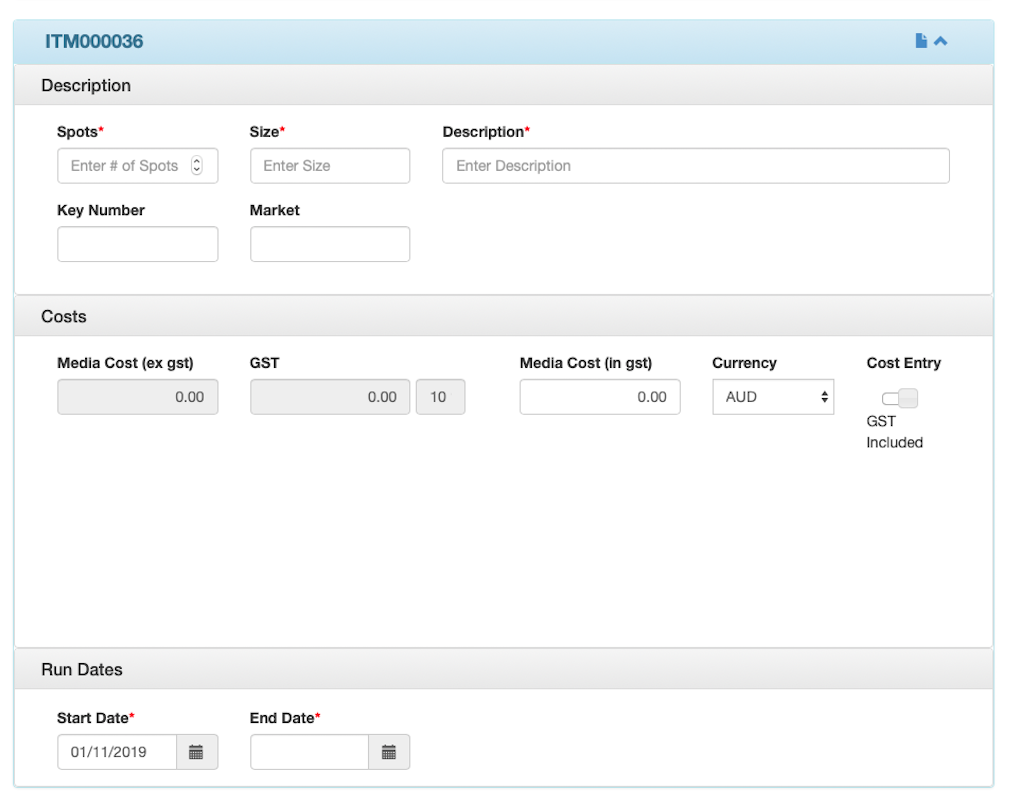
Description
Enter the Spots, Size and Description for the item.
NOTE: as this information is displayed on the client’s invoice we recommend being consistent with data entry to provide clients with easy to read invoices. Any account codes or purchase order references required by the client can be included in the Description box.
Costs
Enter the Media Cost for the item. You can switch between Inclusive and Exclusive GST via the Cost Entry button.
Run Dates
Use the calendar button to enter the Run Dates for the item.
The type or run dates to be entered default depending on the Media Type:
- Enter the Start and End dates for Media Type TV, Radio, Online and Outdoor.
- Enter one or more Run Dates for Media Type Press and Production.
- Enter the On-Sale date for Media Type Magazine.
NOTE: the dates for each item must occur in the same invoice month. Add additional order items where an order runs across multiple months.
Adding additional Order Items
Items can be expanded or hidden by clicking the up and down arrows on the item header.
Click the round blue Add  button above the first item to add additional items to the order.
Click the round blue Delete  button on the right side of the item header to delete the item from the order.
Click the square blue Clone  button on the right side of the item header to copy the item to a new item.
Click the Continue button at bottom right to go to next step.
Click the Back button to make changes to previous step.
IMPORTANT: using the back button on your browser will take you out of the New Order screen and your data may be lost. To go back a step, use the Back button located at the bottom left of the New Order screen.
